You want to ask AI about several web sources.
AI workflow
How to send browser tabs to ChatGPT as useful context
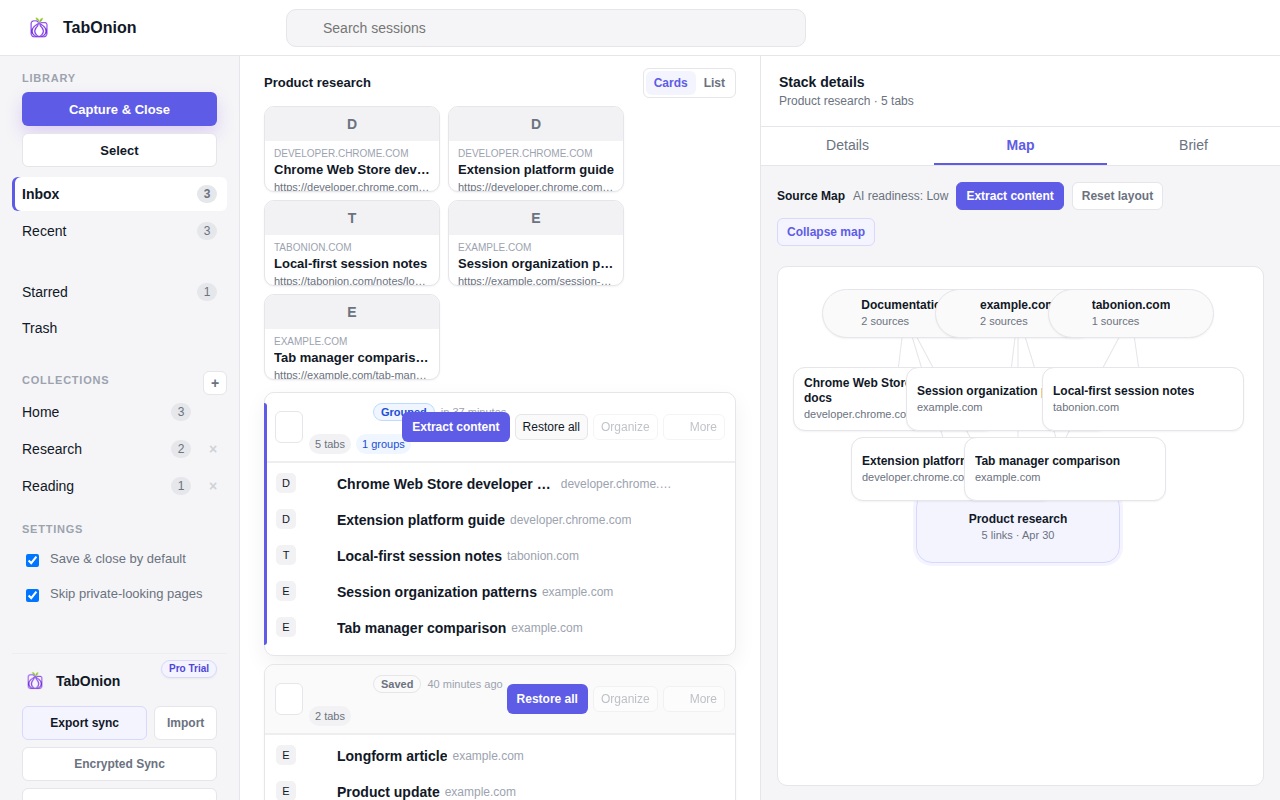
The useful way to send browser tabs to ChatGPT is to prepare a reviewed source set first. TabOnion saves selected tabs as a local pack, lets you remove noise, and can export Markdown links or context so an AI prompt starts from a clean source list.
Short answer
Prepare sources before asking AI.
Prepare browser tabs for ChatGPT by saving the source set, reviewing it, and exporting clean Markdown context instead of pasting raw clutter.
Good fit when
You need to clean up the source list first.
You prefer Markdown context over pasting a messy tab pile.
How to do it with TabOnion
- Capture tabs for one question.
- Remove unrelated pages from the pack.
- Export Markdown or copy the source list into your AI workflow.
AI needs source discipline
Dumping a raw tab pile into an AI tool creates noise. A better workflow is to save the relevant tabs, review the list, and export only the pages that support the question.
Markdown is a practical bridge
Markdown link lists are compact, readable, and easy to paste into ChatGPT, Claude, Gemini, docs, or notes.
Keep user control explicit
AI context export should be user-triggered. TabOnion should not silently send saved browsing material to AI services.
Common questions
Can ChatGPT read every page from a tab list?
Only if the target AI tool has access to those pages or you provide enough content. A Markdown source list is a starting point, not a guarantee.
Does TabOnion send my tabs to AI automatically?
No. AI-ready export is an explicit user action.