The browser is too crowded to scan.
Tab cleanup
Clean up browser tabs without losing context
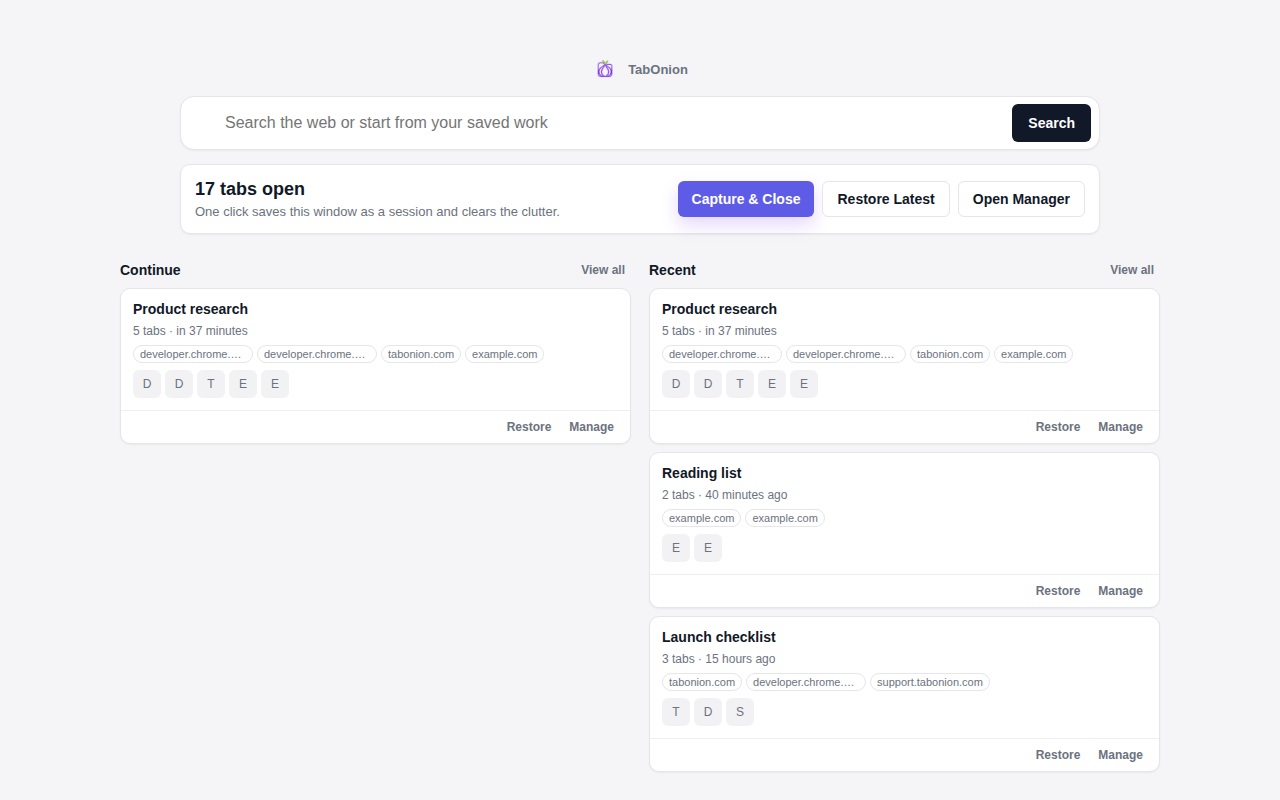
A good browser tab cleanup starts by preserving the useful context. Save the tabs that belong together, close the visual clutter, then restore, copy, or export the stack when the task comes back.
Short answer
Declutter after the source trail is safe.
Clean up browser tabs by capturing selected work first, closing the clutter, and returning later with restore or Markdown export.
Good fit when
You want to close tabs only after saving the source trail.
You need a cleanup workflow that does not turn everything into bookmarks.
How to do it with TabOnion
- Pick one task hidden inside the tab pile.
- Capture those tabs as a local stack.
- Close the captured tabs and leave only current work open.
Cleanup should not mean deletion
Many open tabs are reminders, source trails, and half-finished decisions. Closing them all at once can remove the cues you needed to continue.
Capture first, organize later
You do not need a perfect filing system before cleanup. Start by saving the related tabs into a practical stack.
Keep the source trail visible
After cleanup, the saved stack should still expose titles and URLs so you can inspect what was preserved.
Common questions
What should I do with tabs I am not sure about?
Capture the ones tied to a real task. Leave unrelated or uncertain pages out so the stack stays useful.
Is this better than bookmarking everything?
For temporary work, yes. Bookmarks are better for permanent references; stacks are better for active context.