Chrome needs a restart but the current window contains work.
Restart workflow
Save tabs before restarting Chrome
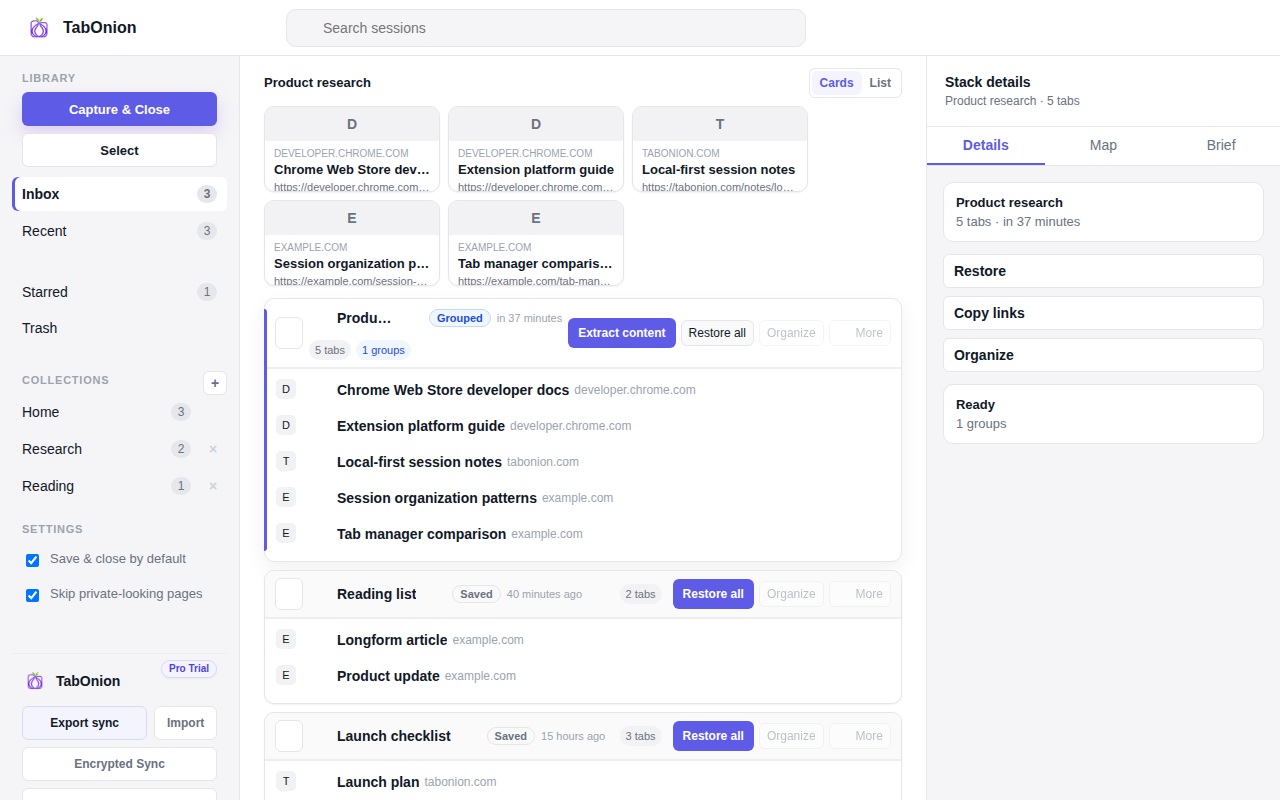
Before restarting Chrome, save the tabs that still represent active work. TabOnion captures selected tab titles and URLs locally so you can restart, update, or clean up the browser without depending on a full-window restore.
Short answer
Restart Chrome after the work is captured.
Save tabs before restarting Chrome so active work has a local restore point and you do not need to reopen the whole old window.
Good fit when
You want a restore point before updating or cleaning up.
You prefer reopening one saved stack instead of every old tab.
How to do it with TabOnion
- Scan the window for tabs that still matter.
- Capture selected tabs as a local stack.
- Restart Chrome and restore the stack only when needed.
Restarting exposes messy sessions
Chrome updates, slowdowns, or crashes often force a restart at the worst moment. If the important tabs are not captured first, you are relying on browser recovery and memory.
Capture before restart
Save the tabs that belong to one task, then close or restart with a clear recovery path.
Restore selectively afterward
When Chrome opens again, restore only the stack you need instead of reopening every tab from the previous window.
Common questions
Will this save my logged-in session?
No. TabOnion saves titles and URLs, not cookies, passwords, or authentication tokens.
Can I use this before a Chrome update?
Yes. Save the work stack before updating or restarting, then restore the links afterward.